There already exist some collections of VM images in Windows Azure gallery. Additionally on VM Depot the community can share custom provisioned images. Looking for a HDP ready image based on CentOS I could not find one suitable for my needs. In this post I would like to describe how I created my first HDP ready image based on CentOS for Windows Azure. The image will be created within Azure itself, as I don’t have access to Hyper-V and any attempts to create a CentOS based VHD with VirtualBox failed for unknown reasons.
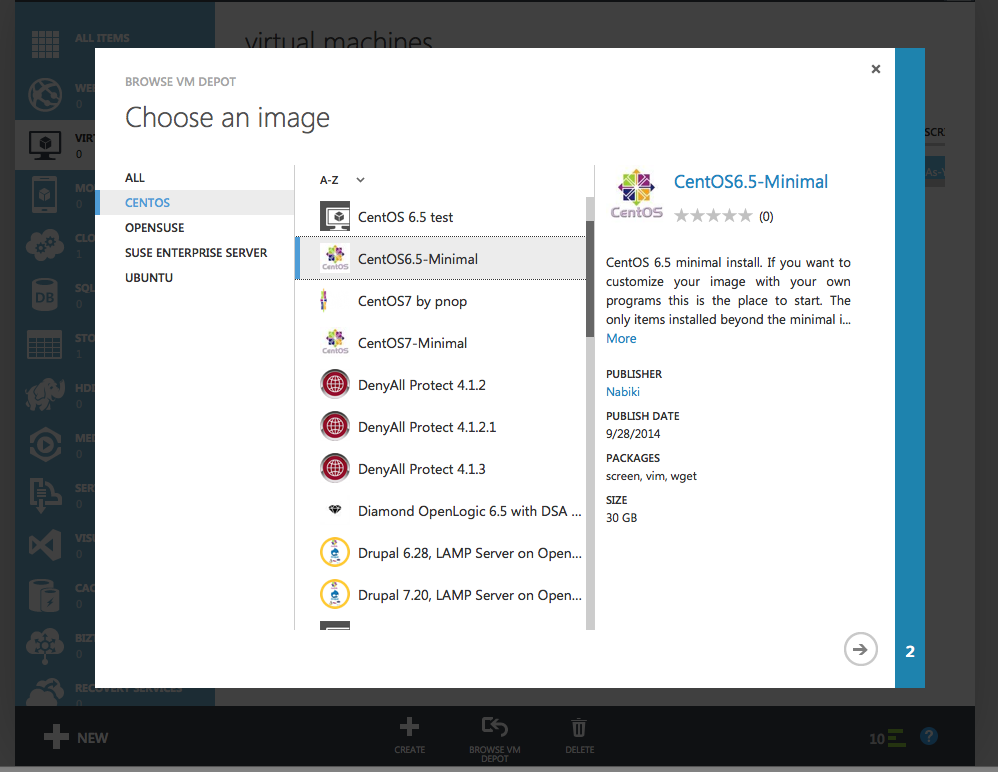
First I imported a CentOS image I found in the VM Depot using the Azure management console.
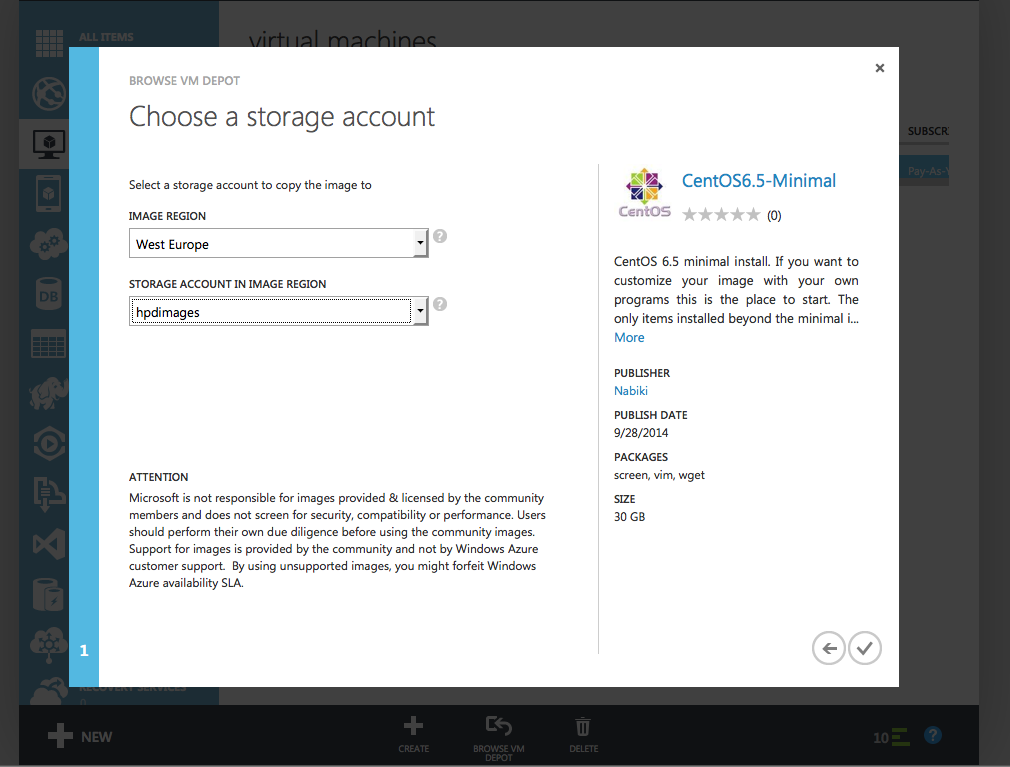
Selecting a region and storage service to import the selected image to:
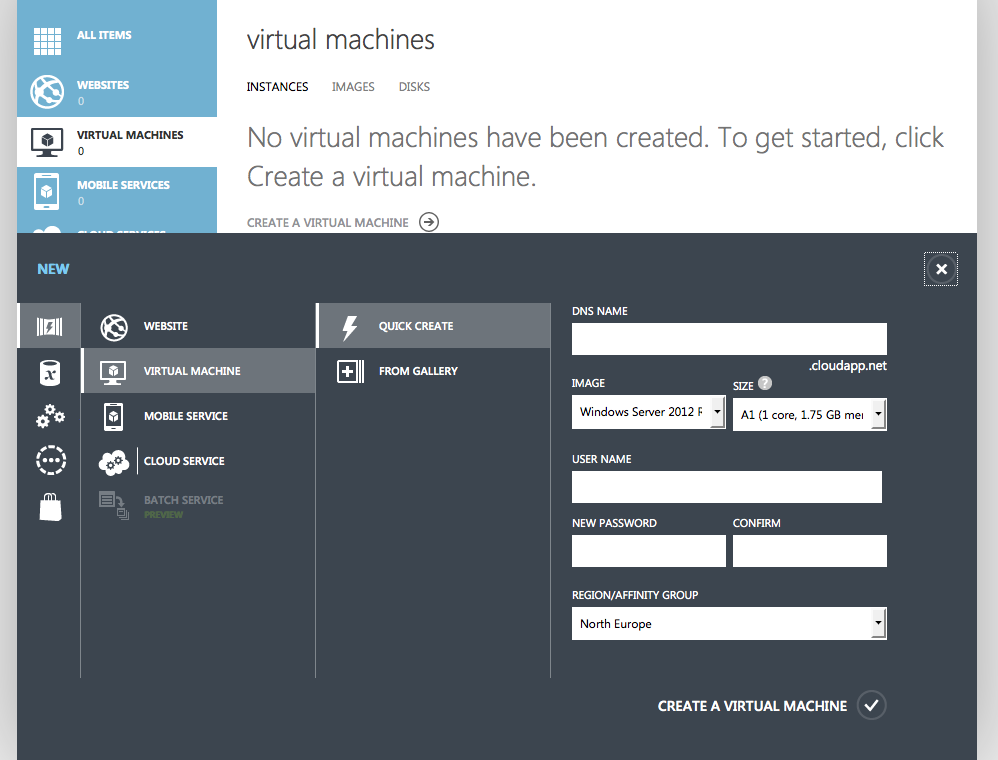
Once the image has been successfully imported it can be used to launch a new instance. Create a new virtual machine by selecting the image from your gallery. Use “From Gallery” to be able to select an image from “My Images” as you can see below. Create the virtual machine like any other.
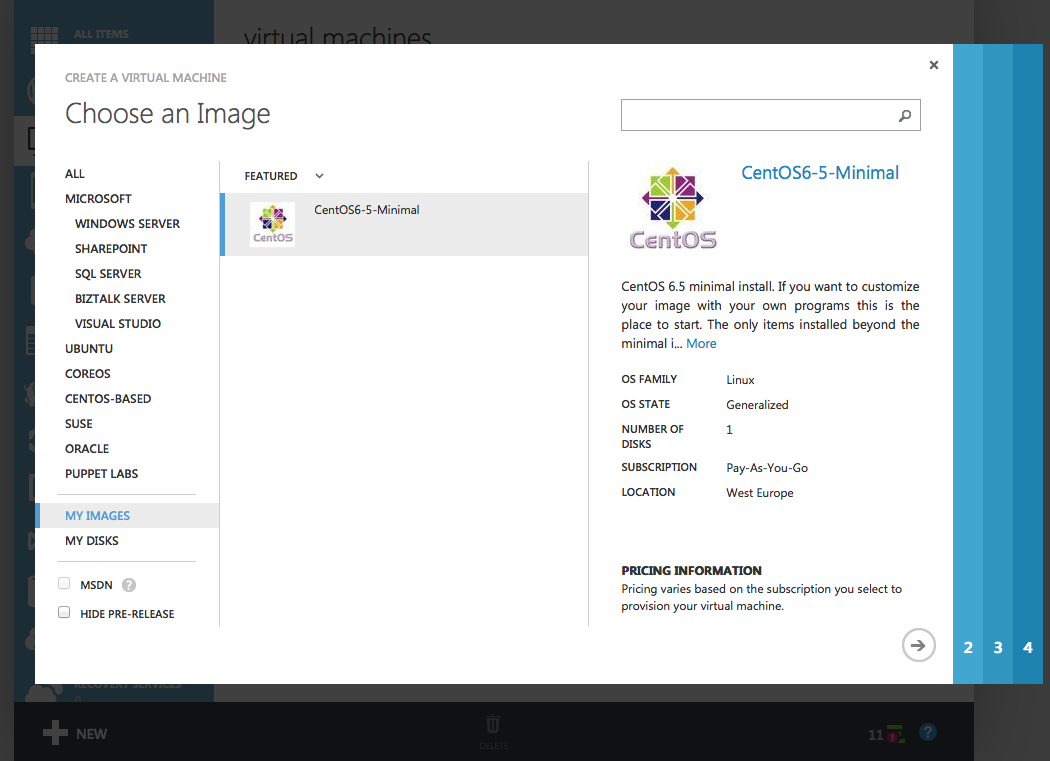
Select the imported Image:
For our HDP ready image we will upgrade first all existing packages at which point we arrive at CentOS 6.6.
$ yum -y upgrade
Next we install Puppet on the machine for provisioning:
$ sudo rpm -ivh http://yum.puppetlabs.com/puppetlabs-release-el-6.noarch.rpm
$ sudo yum -y install puppet
In case we choose to use Chef, we want to install this as well. If you wonder why we not also install Ansible, it uses pure SSH and does not need anything installed on the node.
$ curl -L https://www.opscode.com/chef/install.sh | sudo bash
As one of the last configuration we disable the requirement to use a ptty for sudoers. Later this will help us to automatically provision the instance again. In /etc/sudoers find the line Defaults !requireptty and change it to:
Defaults !requireptty
Now that we have all the needed packages and configurations in place we can deprovision the virtual machine to make it usable as a image for future instances. To do this we run the following and logout:
sudo waagent -force -deprovision+user
export HISTSIZE=0
logout
After logging out from the machine we shut it down via the Azure management portal. The instance itself is no longer needed as why we delete it keeping the associated VHD.
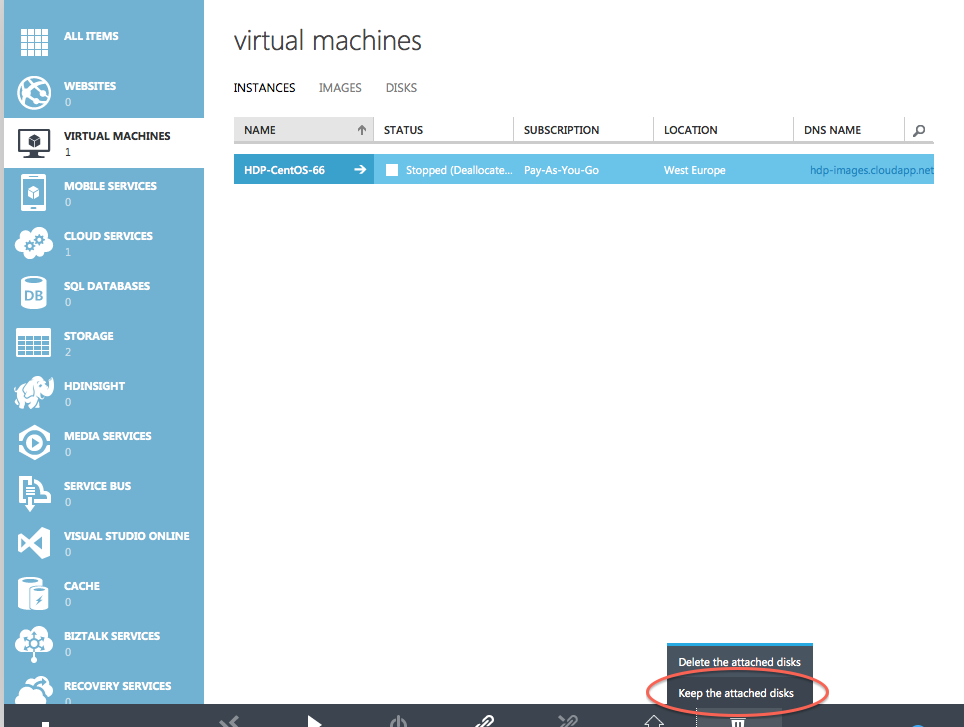 But now the disk is still associated to your virtual hard drive, which prohibits us from creating a new image based on the VHD. So we need to also delete the disk but this time make sure we don’t delete the linked drive.
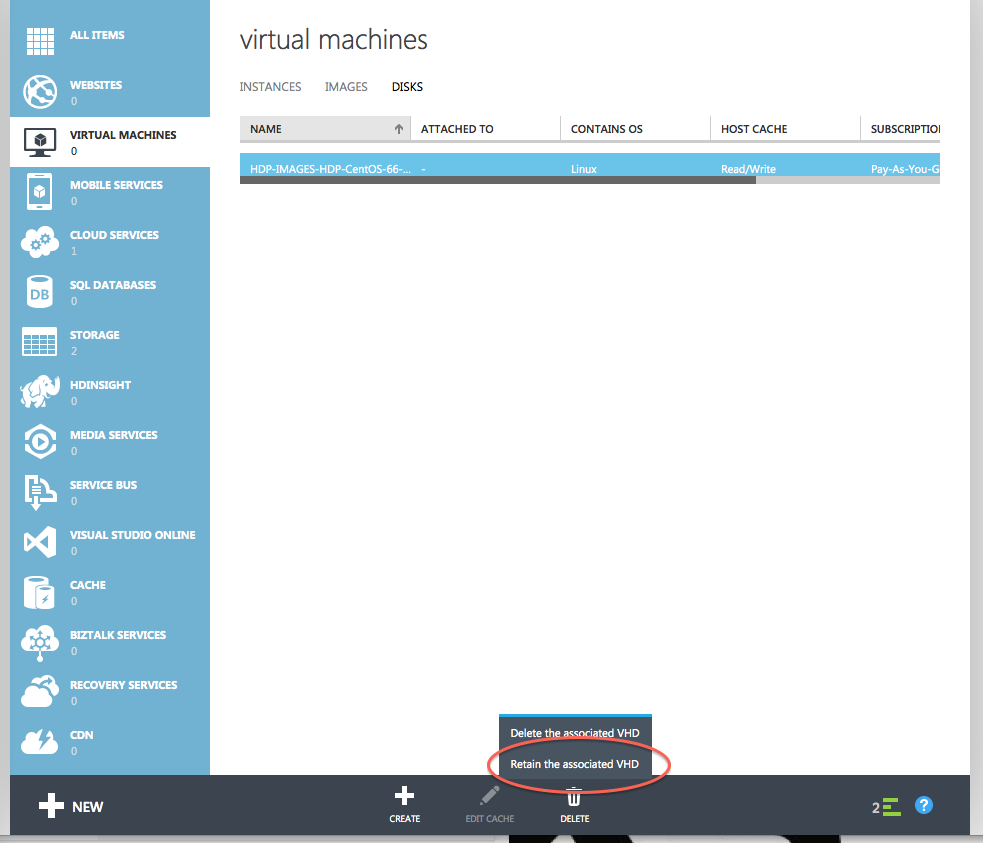 Now that we have non attached VHD drive with our provisioned CentOS operating system we can use it as the foundation of our image. Go to Images and create a new one:
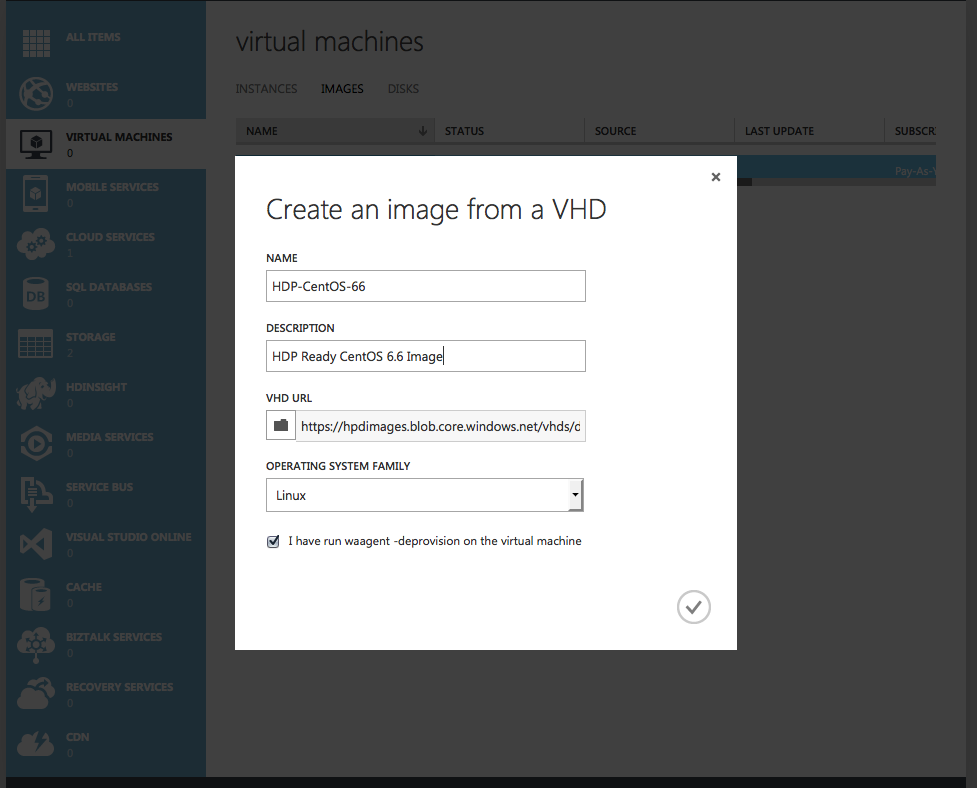 That’s it! We now have a HDP ready image which we can use to setup a HDP cluster in Windows Azure.

 henning.kropponline.de